
Losing Your Claude Cowork?
Here’s How to Never Worry About It Again

Claude Cowork is becoming many people’s favorite digital coworker. It reads your files, builds your documents, manages your projects, and remembers everything you’ve told it. But there’s one question that keeps people up at night: what happens if you lose it all?
I lost all my Cowork scheduled tasks, projects, chats, workflows, and pipelines. I learned it the hard way and want to save you from this frustrating, horrible experience.
What if you need to reinstall Claude Cowork? What if your computer crashes? What if something goes wrong and you need to start fresh?
The answer isn’t as scary as it sounds. Unlike many desktop applications that hide their data in mysterious system folders, Claude Cowork is actually quite straightforward to back up and recover. The key is understanding where your data lives and how to preserve it.
In this article, I’ll explain what you actually need to back up, how to do it safely on both Mac and Windows, and most importantly, how to recover everything if the unthinkable happens and you need to reinstall Claude Cowork from scratch.
What Actually Needs Backing Up?
When you use Claude Cowork, you’re essentially creating four types of valuable data:
Project Folders - These are the directories on your computer that you’ve granted Cowork access to. They contain your actual files, documents, spreadsheets, images, and everything else you’ve created or uploaded.
Chat History - Cowork remembers every conversation you’ve had. These are stored separately from your files and contain the context of all your work sessions.
Settings and Configuration - This includes your preferences, API keys, folder permissions, and any custom hooks or rules you’ve set up in your
settings.jsonfile.Tasks, Schedules, and Projects - If you’ve created recurring tasks, scheduled workflows, or organized your work into projects within Cowork, these need to be preserved, too.
The good news: most of this is actually easier to back up than you think, whether you’re on Mac or Windows.
Here’s the Mental Model
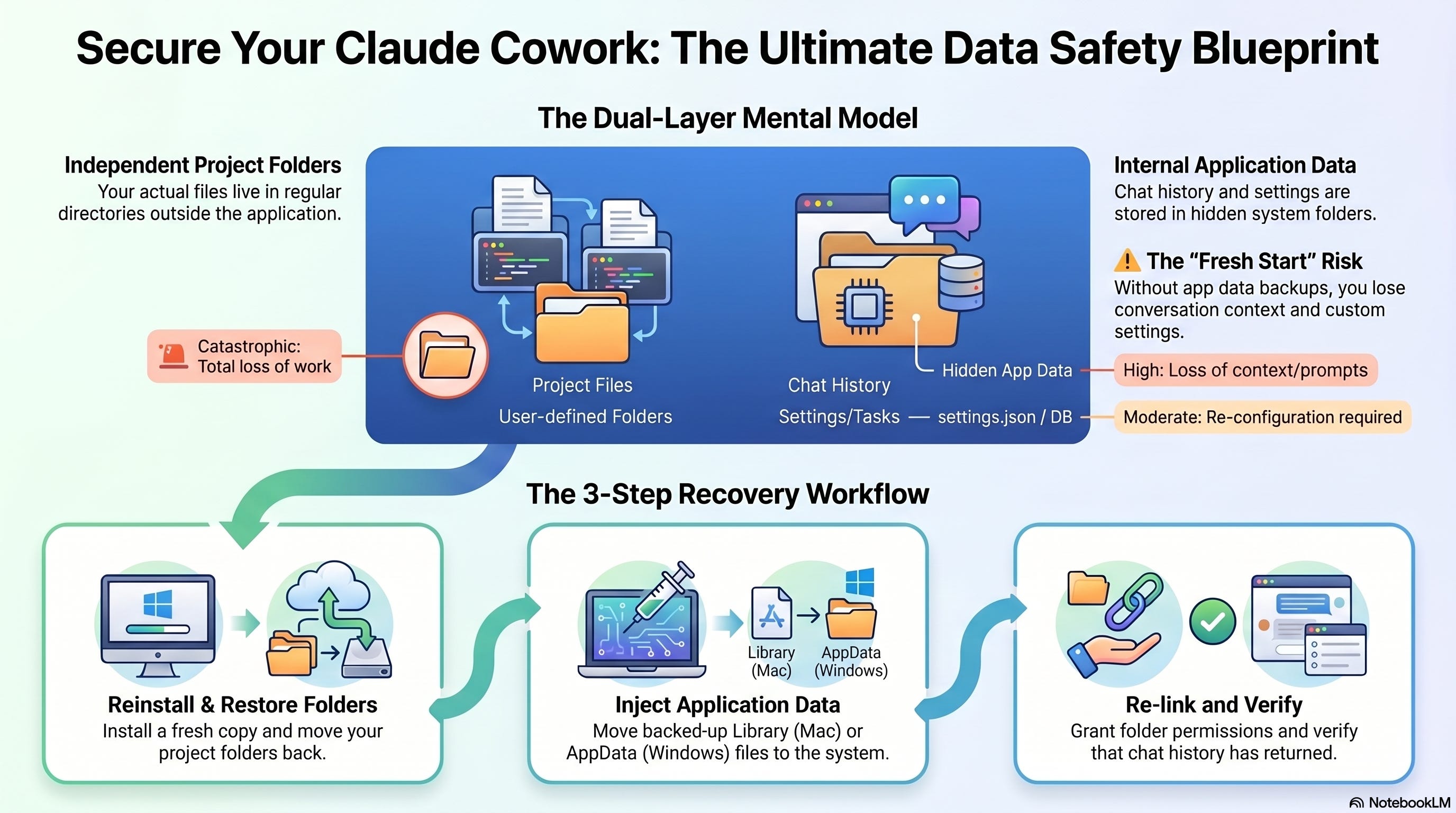
Think of Cowork like this: your actual work files live in regular folders on your computer, so they’re already accessible and backup-able using standard tools. But Cowork’s memory (chats, settings, tasks) lives in a specific location that Cowork maintains. Back up both, and you’re completely protected.
The location differs between Mac and Windows, but the principle is exactly the same.
What Happens If You Reinstall?
Here’s the scenario many people worry about: you uninstall Claude Cowork, something goes wrong, or you get a new computer. You reinstall Cowork. What comes back?
The answer depends on what you backed up beforehand.
If you only backed up your project folders, you’ll get all your files back, but your chat history will be gone. Cowork will feel like a fresh installation. If you backed up your Cowork application data (which is much smaller than you’d think), you’ll get your chat history and settings back, too.
But here’s the most important part: if something catastrophic happens and you didn’t back anything up, you haven’t lost your actual work. Your project folders still exist on your computer. They’re completely independent of Cowork. The app just reads and writes to them.
The Backup Strategy (Simple Version)
The simplest backup strategy is this: create a regular backup of two things.
Your project folders (the ones you’ve given Cowork access to)
Your Cowork application data
You can do this with Time Machine (Mac), File History (Windows), a cloud backup service, or even manual folder copying. The choice depends on how much automation you want and which operating system you’re using.
The Recovery Process
Recovery is equally straightforward. If you need to reinstall Cowork after losing your data, here’s what you do:
Install a fresh copy of Claude Cowork
Restore your project folders from your backup
Restore your Cowork application data from your backup
Grant Cowork permission to access your project folders again
Open Cowork and verify your chat history and settings are there
If you only have your project folders restored (no application data backup), you can still access all your work files. They’re completely independent of Cowork’s memory. You’ll just lose the conversation history.

Why This Matters
This becomes important when you realize how much you might be relying on Cowork. If Cowork has become central to your workflow, losing your chat history could mean losing days of work context and refined prompts. But losing your actual project folders would be catastrophic.
Understanding this difference changes how you approach backups. You need different strategies for each.
Platform-Specific Notes
On Mac, Cowork stores application data in your Library folder, which is hidden by default. We’ll show you how to access it.
On Windows, Cowork stores application data in your AppData folder, which is also hidden by default. We’ll show you how to access it there.
Both require the same backup strategy; the folder locations differ.
What You’ll Learn in the Paid Article
The paid tutorial this week walks through the complete step-by-step process with screenshots for both Mac and Windows, showing:
Exactly where your Cowork application data is stored on macOS and Windows
How to access hidden system folders on both platforms
How to create both automated and manual backups (Time Machine for Mac, File History for Windows)
How to verify your backup is complete before you need it
The exact steps to restore everything after a reinstall on your platform
How to use cloud backup services that work on both Mac and Windows
How to handle the scenario where you lost Cowork but still have your files
Advanced recovery: restoring selective chat history if something goes wrong
If you’re serious about protecting your Cowork workflows, the paid article is built for you.
Upgrade to paid to get the full tutorial.
Thanks for reading Data Science In Action! If this was useful, share it with someone who would find it valuable.
#ClaudeCowork #DataScience #AITools #Backup #ProductivityTips #Mac #Windows #DataScienceInAction